
WordPress makes it easy to embed images, tweets, YouTube videos, and other types of content by simply pasting in the URL, but as of the time of writing, you cannot embed documents like PDFs or spreadsheets in the same manner.
At best, you can post a link to the document making it available for users to download. That works well, but sometimes you want users to view the document on your site without having them download it to use it elsewhere.
There’s an easy way to add this functionality to your WordPress website, and that is by using the Embed Any Document plugin which allows you to embed any document of the following file types:
- Microsoft Word (docx, docm, dotm, dotx)
- Microsoft Excel (xlsx, xlsb, xls, xlsm)
- Microsoft PowerPoint (pptx, ppsx, ppt, pps, pptm, potm, ppam, potx, ppsm)
- Adobe Portable Document Format (pdf)
- Text files (txt)
- TIFF Images (tif, tiff)
- Adobe Illustrator (ai)
- Scalable Vector Graphics (svg)
It uses the Google Docs viewer or Microsoft Online (whichever you prefer) to display the embeds on your website.
Follow the instructions below to install and configure this plugin on your website.
How to Embed Any Document in a WordPress Post
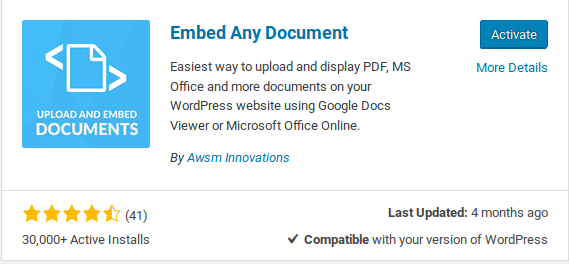
1. First, install the plugin by navigating to “Plugins -> Add New” and enter “Embed any Document” as your search query. Install and activate the “Embed Any Document” plugin.
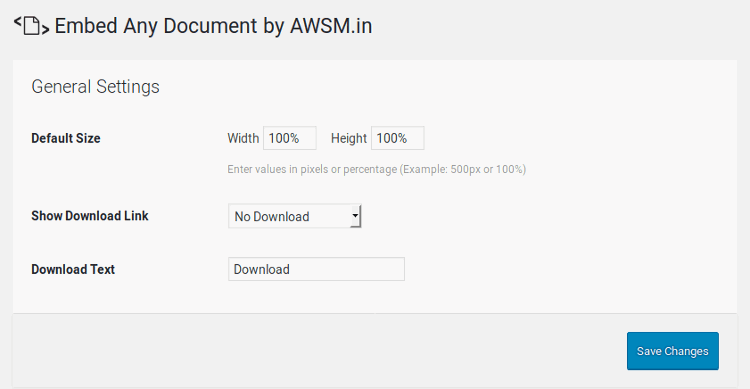
2. Upon activation, go to “Settings -> Embed Any Document” to configure the plugin’s settings. You can customise the width and height of the embed on your site and choose whether to show a download link for everyone, logged in users only or no download link at all.
3. Once satisfied, you can test the plugin by creating a new post: “Posts -> Add New.”
4. Click the “Add Document” button which should be somewhere beside “Add Media.”

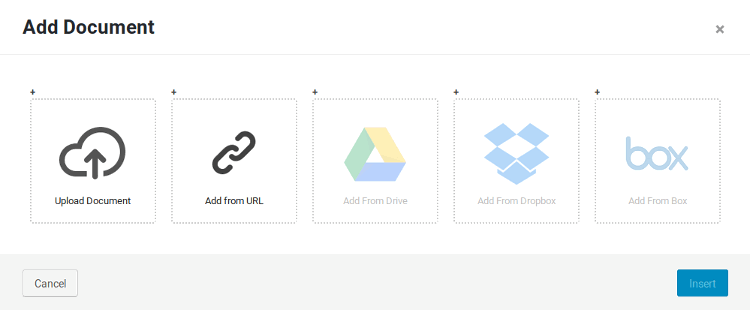
5. A popup should appear on your screen. In the free version you have the option to upload a document or add it from a URL. If you want to embed a document stored in Google Drive, Dropbox, or Box, you’ll have to purchase the pro version to unlock those features. A possible workaround is to grab the document from your cloud storage and upload it using the “Upload document” option.
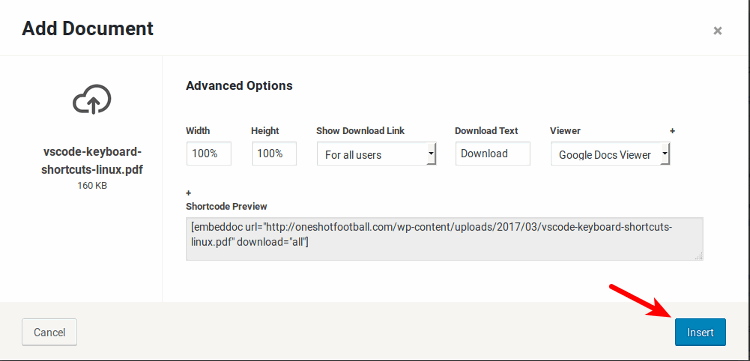
6. Once you have selected the document to upload, you will be given the opportunity to control some options before inserting the document. Click the “Insert” button to add the document shortcode to your post.
7. Finally, save the post and preview it to see how the embedded document looks on your website.
Alternatives
Here are some others plugins that allow you to embed a document on your site.
- Google Docs Embedder – Similar to Embed Any Document, it allows you embed documents in a wide variety of formats
- Google Drive Embedder – Helps you embed documents stored in Google Drive
Wrap Up
That’s how easy it is to add documents to your WordPress website. If you have other techniques for embedding documents in WordPress sites, share them with us in the comments section below.