
Since Google’s Inbox was released as a beta back in October of 2014, I have been a fan. From the ability to mark emails as “done” to the way the user interface is fluid, capable, and provides an overall sense of simplicity, Inbox has made email seem new again and less of a royal pain to read. But, as all applications go, there are more features than meet the eye. For new users these tips will make it a breeze to get through your emails.
Inbox Reminders
While you can just pin an email to the top of your inbox, this can quickly become a cluttered way of reminding yourself to attend to a subject. Furthermore, it doesn’t actually remind you when to attend to that subject.
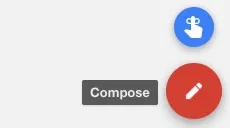
So, what’s the workaround? It’s quite easy, actually. View the email you’d like to be reminded about, just hover your pointer over the plus (+) symbol on the bottom right of the window, and select the “Reminder” icon.
From here, type something like “remind me to respond to this email on Friday at 10:00am,” or anything that relates to the task that needs to be completed.
You can be reminded to book that weekend getaway flight, email your boss about this week’s presentation, or remember that coffee get-together. It’s entirely up to your individual needs, and this is part of what makes Inbox work so well.
Email Bundle Notifications
Now this one is one of my favorites! To change email bundle notifications to say, once a day rather than every time you receive a message, hover over the bundles under “bundled in the inbox.” It’s on the far left side of your Inbox.
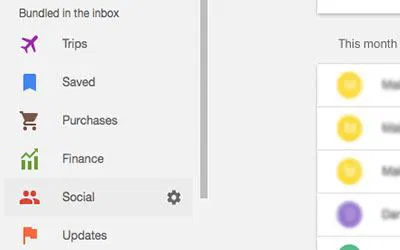
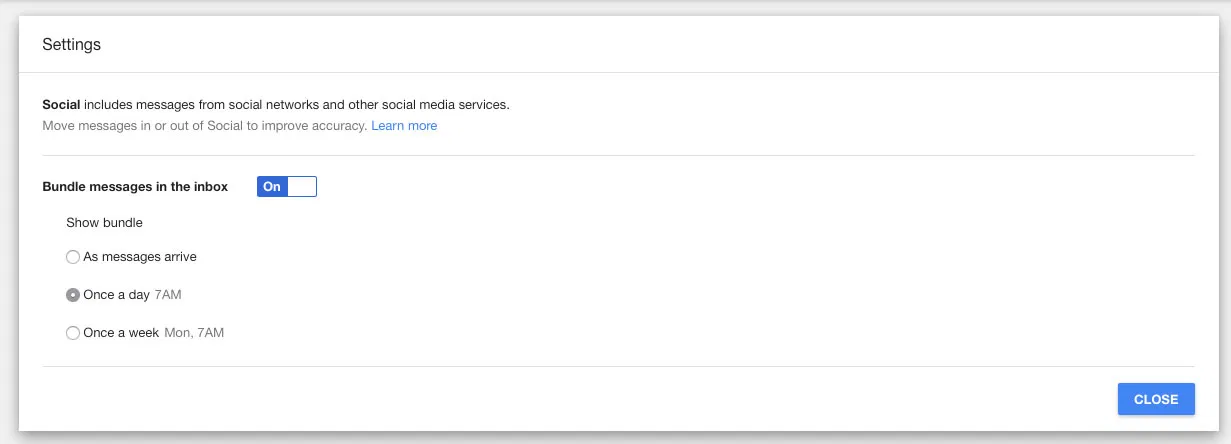
Take social, for example. Hover your pointer over it and select the settings wheel. You can now change “show bundle” from “as messages arrive” to once a day or weekly.
Immediate Download
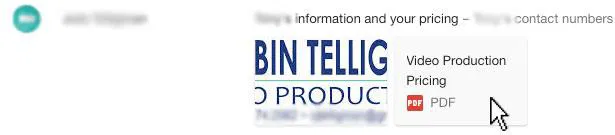
Gone are the days of clicking on an email, waiting for an attachment preview to load, and then waiting to start a download. In Inbox just click on the attachment in the message preview and then click on the download icon in the top right. That’s all there is to it. Enjoy your files.
Swipe Left, Swipe Right, Swipe Left. Did I Say Swipe Right?
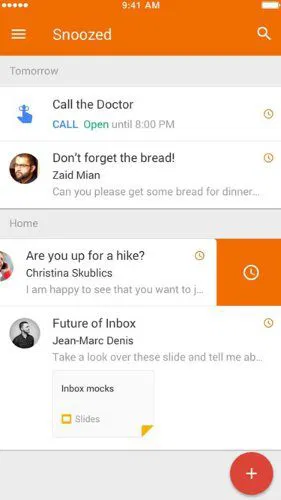
Inbox’s mobile counterpart is the best way to maximize email productivity on the go. The app is available on your Android or iOS device, and it’ll make email one less thing to worry about as you go along on your busy day.
You can swipe left to mark an email as “done,” which is Inbox’s equivalent of archiving it, or you can swipe right to bring up the snooze icon to get back to it later.
Press and hold on a message to start selecting multiple messages. Try swiping down to reveal new messages. Swipe from the left side of the screen to display the Inbox Menu, and you can pull a message down to close it.
Pinch to zoom is perhaps one of the most useful and surprisingly little known features available. As you’d guess, pinch to zoom the text and spread to zoom out.
These gestures are just a few quick ways to mitigate interaction time as apposed to having to tap-tap-tap to get stuff done. After all, aren’t we all about maximizing productivity in less time?
Conclusion
Well look at that – no more messy email accounts. You have mastered the tricks of Inbox for a better digital life and a quicker email response time at that. After switching to Inbox from the default app, I can’t think of many whom have gone back.