
Incognito mode allows you to browse websites privately in your browser with no traces of the websites you visit saved in your browser. Sometimes you may click a link on a website that leads to a webpage which should only be opened in incognito for various reasons. If you end up in such a situation, you can use an extension for Chrome that allows you to launch the current tab you have open in Chrome in an incognito window so that its history is not preserved.
Here’s how to do that.
Opening the Current Tab in Incognito Mode in Chrome
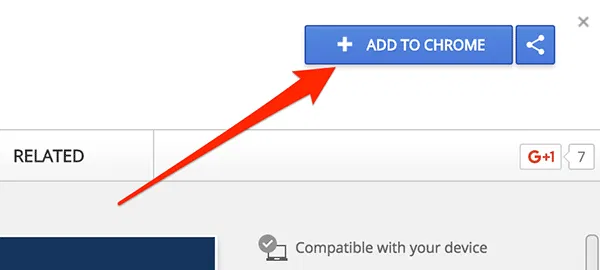
1. Head to the Go Incognito extension page in the Chrome Web Store, and add the extension to your browser by clicking on “Add to Chrome” on that page.
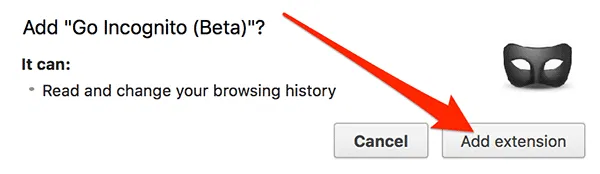
2. Click on “Add extension” on the following screen to add the extension to your browser.
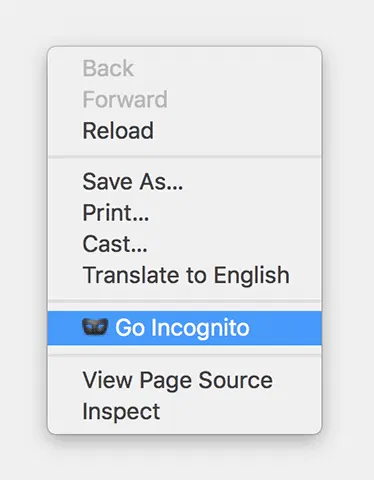
3. The extension should now be installed in your browser. Open a webpage in a regular tab in Chrome, and then right-click on a blank space in the browser and select “Go Incognito” to open the current webpage in the incognito mode.
It will also remove traces of the current tab from the regular browsing history in Chrome.
On the reverse side, if you have a tab open in incognito mode and click the “Go Incognito” option, the tab will then launch in the regular window in the browser.
Conclusion
If you clicked a link on a webpage, and it led you to something that you don’t want seen, the tip above should help you open that webpage in incognito. It will also remove traces of that webpage from the history saved in your browser.