
Google Chrome comes with its own settings that you can access by clicking on the three horizontal lines located in the top-right corner of the browser’s screen and then selecting “Settings.” The Settings panel will launch in a new tab in your current window.
While there’s no harm opening settings in the new tab of the current window so that your existing tabs are also preserved, some users might prefer launching the Settings panel in a new window. The reason is probably because the user has a number of tabs open in his current window and would like for the settings panel to launch in a new window.
If you would like to do that in Chrome, there is an easy way to do that.
Opening Google Chrome Settings in a New Window
1. Launch Google Chrome on your computer.
2. When Chrome launches, type in the following address in the address bar of the browser and press Enter. It will let you access the Chrome flags.
chrome://flags/#enable-settings-window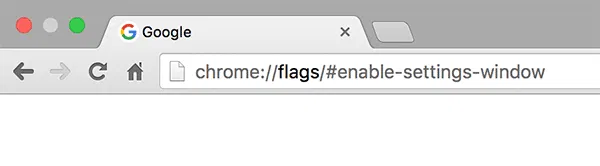
3. You should now see all the Chrome flags on your screen, and the one named “Show settings in a new window” will be highlighted. Click on the drop-down menu for that option and select “Enabled.”

What you did here was enable the flag that opens the Settings panel in a new window in Chrome.
4. Click on the “Relaunch Now” button in the bottom of your screen to relaunch the browser so that changes can take effect.

From now on, whenever you access the settings panel, it will launch in a new window instead of a new tab.
Conclusion
The quick tip above should help you open Google Chrome settings in a new window so that you can save on the number of tabs open in your current Chrome window.